Affirmation: Sankalpa
A guide to Sankalpa.
Read an affirmation, write a few words, or make room for a quiet moment. Here is how to use each part of the iPhone app.
Updated
Your first minute
- Choose your focus. During setup, choose up to three topics, or choose Neutral for a mix. Your name is optional.
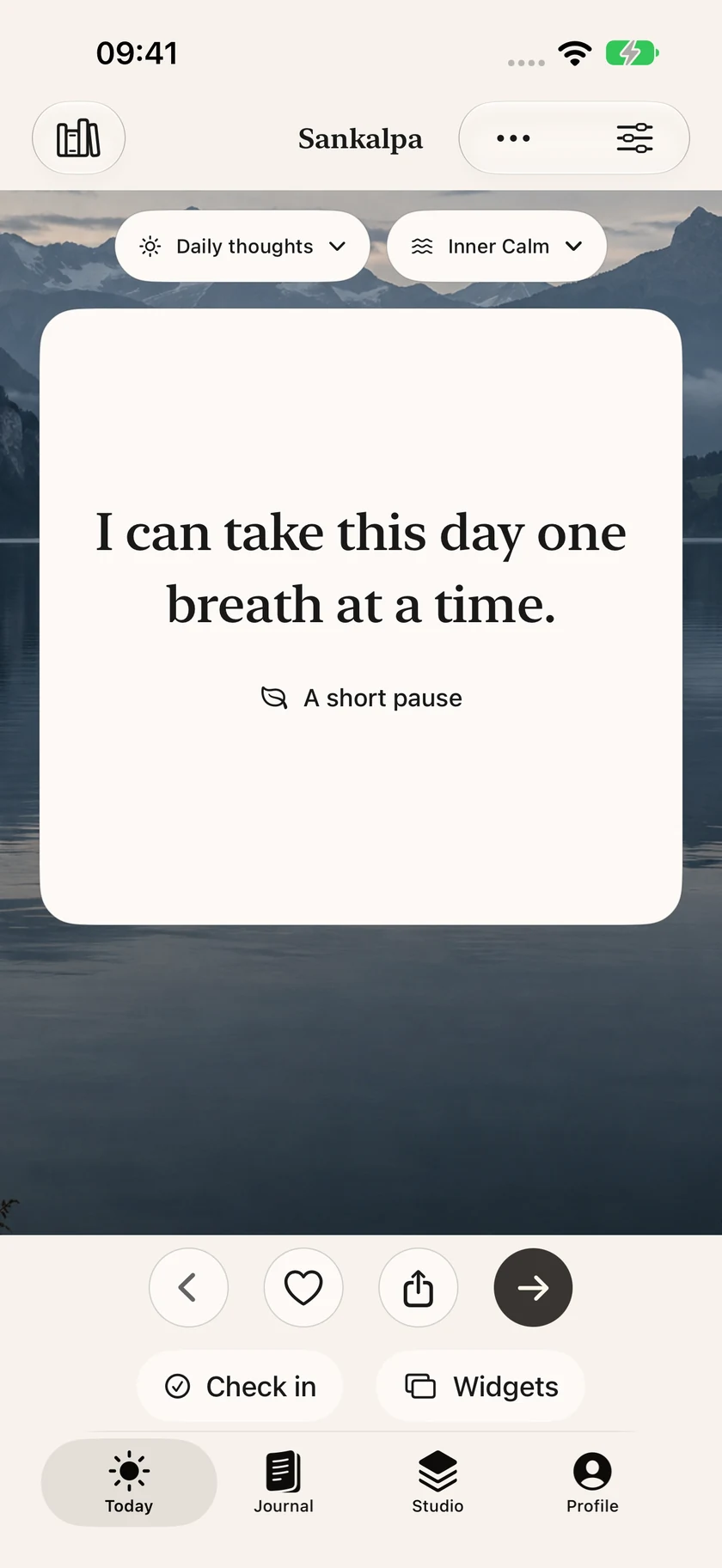
- Read one thought. Open Today. Tap Next thought to browse, or the heart to keep a favorite.
- Write a line. Open Journal, answer a question in your own words, then tap Save reflection.
You do not need a Sankalpa account. Your writing stays on your iPhone. The included words, pictures and music work offline; Apple purchases and restores require a connection.
- Today
- Read affirmations, keep favorites and check in.
- Journal
- Write reflections and intentions, record moods and revisit previous days.
- Studio
- Design images, adjust widgets and open instrumental music.
- Profile
- Choose your focus, language, reminders, appearance and data settings.
These instructions use the English app labels. You can choose another language in Profile → Language.
Read and keep affirmations
In Today, use the arrows or Next thought to move through the words. The heart adds the current affirmation to your favorites; tap it again to remove it. Use the share control when you want to send the text somewhere else.
Tap A short pause to read the same thought on its own, without the browsing controls. Tap Done when you are ready to return.
Find words by topic
Open Profile → Affirmation library. The My library screen has Explore, Favorites and My words. Search for a phrase or use All topics to narrow the library. Choose Use today on a phrase to read it in Today.
To change your everyday mix, open Profile → Focus. The six topics are Inner Calm, Confidence, Self Love, Gratitude, Purpose and Abundance. You can change your selection whenever you like.
Write your own words
- Open Profile → Affirmation library.
- Tap the plus button, labelled Add affirmation.
- Write your phrase, choose a focus, then tap Save.
You can write up to 280 characters. A short sentence is often easier to read on a widget. To adapt the thought already on Today, open More actions → Make these words mine.
Your saved phrases appear in My words. Open a phrase’s Affirmation options menu to edit or delete it. Deleting a phrase asks for confirmation.
Journal and check-ins
Save a reflection
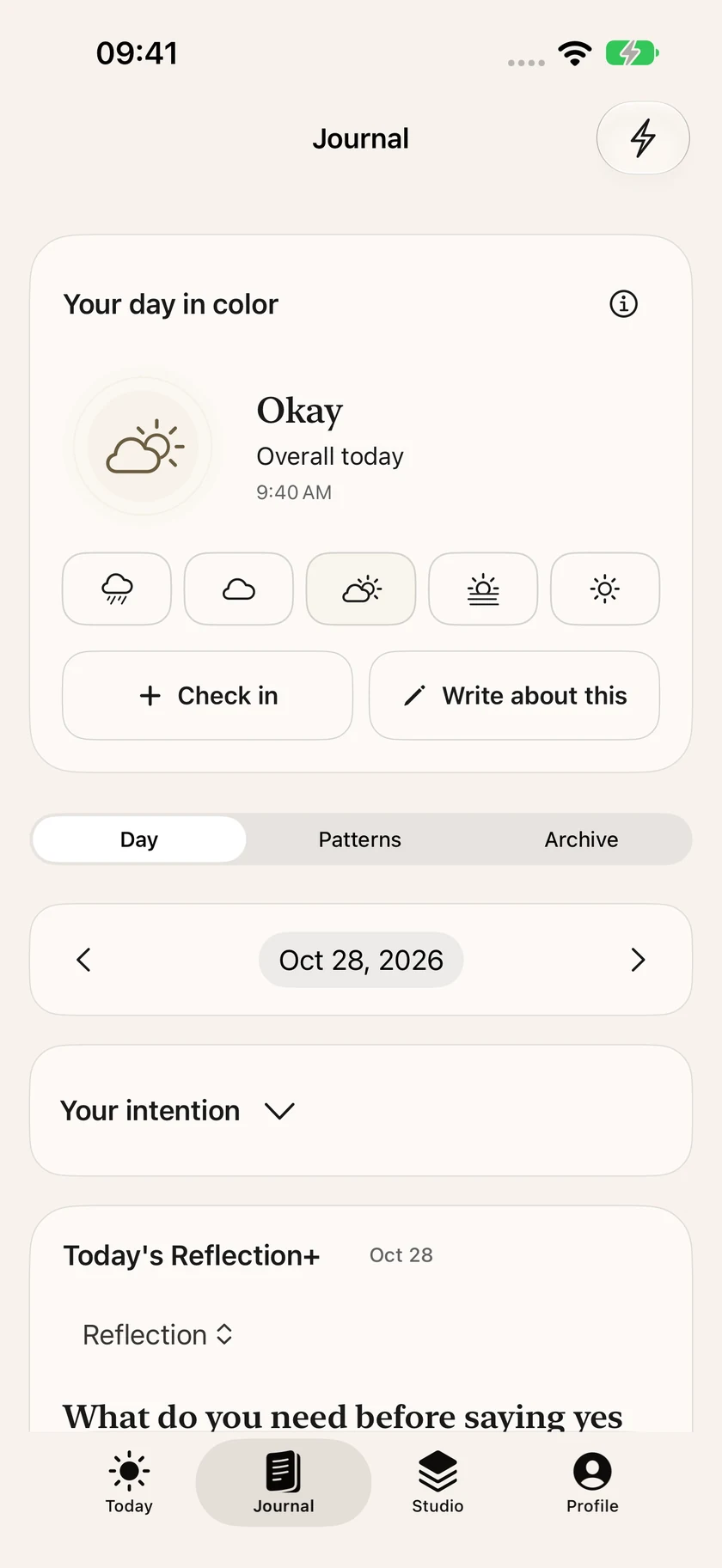
- Open Journal → Day and return to today if you are viewing another date.
- Use the question shown, or tap Another question. Write in the reflection field. You can also open Your intention to set down a thought for today.
- Tap Save reflection. Look for Reflection saved.
Your unfinished draft is kept locally as you type. It becomes a saved journal entry only when you tap Save reflection. Saving the reflection clears that draft so you can begin another.
Return to an earlier day
Use the day controls to revisit a date. In Archive, search your saved reflections or choose a date range. An entry’s Reflection options menu offers Edit reflection, Share reflection and Delete reflection. After editing, tap Save.
Record how you feel
Use the check-in controls in Journal, or Check in on Today, to record a mood. Journal’s Patterns view brings your recorded check-ins together; choose a day to revisit its details. These are your own records for reflection, rather than a diagnosis or a measure of how you should feel.
Journal entries and moods never become widget content. If a day looks empty, check its date and clear any search or archive filters before assuming an entry is missing.
Home and Lock Screen widgets
Add a widget
Home Screen: touch and hold an empty area, choose Edit → Add Widget, find Sankalpa, choose a size, then tap Add Widget.
Lock Screen: touch and hold your Lock Screen, choose Customize → Lock Screen, then tap the widget area beneath the clock and choose Sankalpa. The available layout depends on your iPhone and iOS version. Apple’s widget instructions show the current system steps.
Choose what it shows
In Sankalpa, open Studio → Your widgets, or Profile → Home and Lock Screen widgets. Choose the content source and Home Screen appearance; changes save automatically.
You can also touch and hold an individual widget and choose Edit Widget to give it its own settings. An override there can differ from your choices in the app. Lock Screen widgets use the system font and wallpaper tint.
Daily thoughts are the default source. If you select favorites or personal words, anyone who sees that screen may be able to read them. An empty personal-word source falls back to daily thoughts. Thoughts are scheduled to change about every three hours; iOS controls the actual refresh time.
Create a card or wallpaper
- Open Studio, or choose More actions → Create an image from Today.
- Choose Card or Wallpaper, select an affirmation and background, and adjust Typography if you wish. The Include affirmation text setting lets you keep just the background.
- Tap Save to add the image to Photos, or Share image to choose another destination.
To use your own background, choose a photo with the system picker. Sankalpa imports a smaller local copy without the original photo metadata. Removing that background leaves your original photo in Photos.
Saving artwork asks for permission to add photos. If you decline, you can still use the share sheet and choose another destination. Saving a wallpaper image does not change your iPhone’s wallpaper automatically.
Instrumental music
- Open Studio → Meditation.
- Choose a soundscape and a Session length.
- Tap Play music. Adjust Music volume, pause or resume, or choose End session.
The included tracks are instrumental, without spoken guidance. Keep the meditation screen open: playback stops when you leave it or lock your iPhone. Changing soundscape ends the current session; tap Play music to start the new one.
If you cannot hear a track, check both the in-app volume and your iPhone’s output, including connected headphones. Try another soundscape if one will not play.
Reading and reminders
Adjust the reading experience
Open Themes and type from Today to choose a background and adjust the reading typography. Sankalpa also responds to your iPhone’s system text size. App reading preferences and Home Screen widget settings are separate; Lock Screen widgets follow iOS typography.
Choose a reminder time
Open Profile → Daily rhythm. Enable Daily affirmation and choose once, twice or three times a day. For multiple reminders, leave at least 30 minutes between them. The schedule follows your local time zone.
Reminders are optional and contain no private writing. Turn them off in Profile, or manage the app’s notification permission in iOS Settings. If a reminder does not appear, check notification permission and your iPhone’s Focus settings.
Keep a copy of your writing
Open Profile → Export your words and choose a location in the file picker. The readable text file includes your saved personal phrases, favorites, reflections, current intention, unfinished reflection and mood records, where present.
This export is for reading and keeping your words. It is not a complete app backup and cannot be imported to rebuild Sankalpa. It does not include every setting or background image.
Understand your backup
Sankalpa has no app-operated cloud sync or server copy of your journal. Your iPhone or iCloud device backup may include local app data, depending on your settings. Restoring an Apple purchase restores access, rather than your private writing.
Delete or reset data
Use the options on a reflection or personal affirmation to remove it individually. To clear personal app data, export what you want to keep, then open Profile → Reset personal data and read the confirmation before choosing Reset data.
The reset removes local writing, moods, reminders and customizations. Apple purchases and copies you have exported or shared remain separate. Swisswise cannot retrieve or delete writing held only on your device. See the privacy policy for the full explanation.
Trial and Lifetime access
The free trial lasts 72 hours from confirmation with Apple. It does not renew and never charges you automatically. Lifetime is a separate, optional one-time purchase, with the local price shown by Apple before you buy.
After the trial, new affirmations, meditation music and new designs require Lifetime. Reading and exporting saved words and using privacy controls remain available.
To restore a previous purchase, open the Sankalpa Lifetime screen from Profile and choose Restore purchases. Use the Apple account that made the purchase and a working connection. If products do not load, use Retry loading products where available. Restoring a trial does not restart its 72-hour period.
If something needs a look
- I cannot find a reflection.
- Check the selected day, search text and Archive date range. An unfinished draft is different from a saved reflection.
- My widget looks different from the app.
- Check the widget’s Edit Widget overrides. iOS controls final sizing, tint and refresh timing.
- I cannot hear the music.
- Keep the Meditation screen open. Check both volume controls and the selected audio output, then try another soundscape.
- My purchase is not available.
- Check your connection and Apple account, then use Restore purchases. This restores access, not your journal.
More answers are on the support page. If you need help, email support@swisswise.com with your iPhone model, iOS version, app version and the steps that led to the problem. Remove private writing from any screenshots you choose to include.